













Home .:.:. BVxL For SAP Business One

BVxL Reporter for SAP Business One

"Trying to Manage a Business Without Good Information is a Recipe for Failure"


BVxL Reporting for SAP Business One has been designed to provide a simple but flexible solution to all your customers reporting requirements.

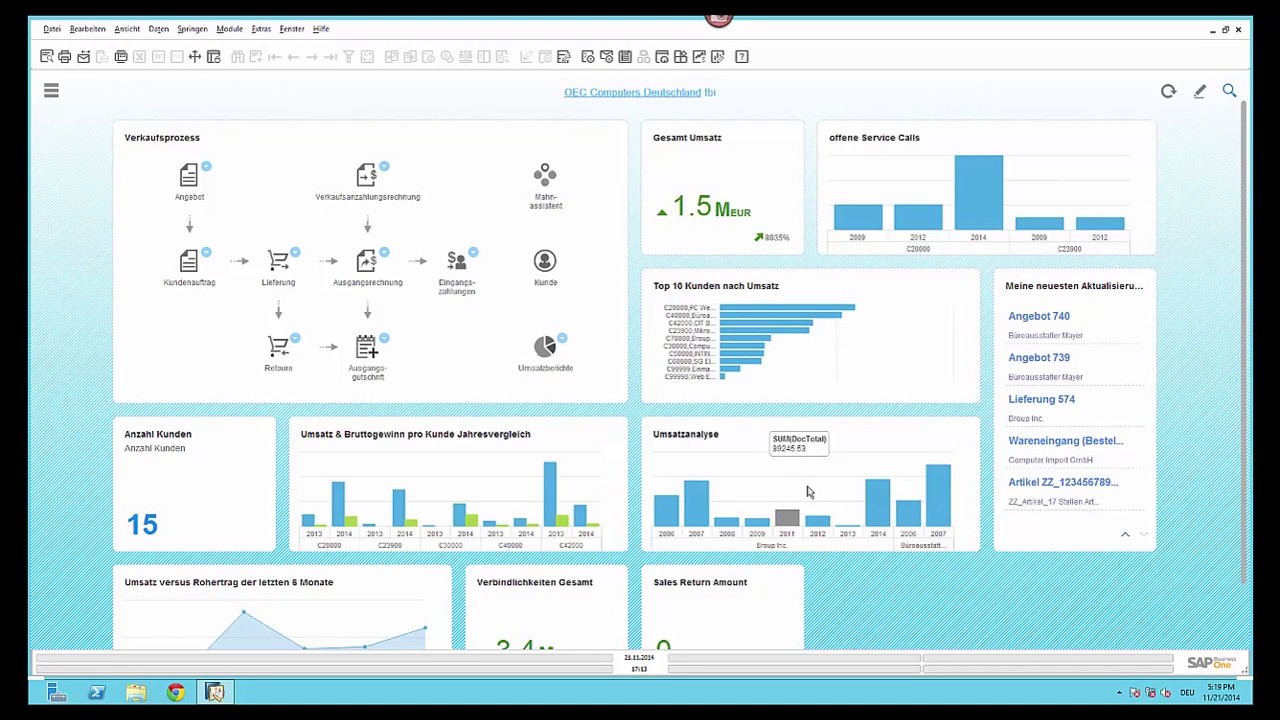
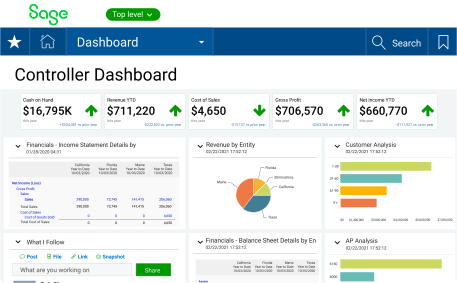
BVxL for SAP Business One provides the ability to see, at a glance, how their business is performing and what changes could be made to improve profitability.

BVxL Reporting for SAP Business One is a business intelligence tool combining data management with a set of report building tools that are integrated into Excel.

BVxL Reporting for SAP Business One connects Excel to any SAP Business One database through the data management interface. The data manager enables you to:

  1. Link SAP Business One tables together to create a new virtual table
  2. Modify, delete or add new (calculated) fields into the new virtual table
  3. Select the fields that you want and filter the data into a reporting data cube

SAP Business One Predefined Data Warehouse

B1Systems working with Blue Valleys Software Ltd have taken all the hard work out of providing reporting solutions to your customers. BVxL for SAP Business One comes with a predefined data warehouse supporting all the necessary data tables and relationships to start building reports straight out of the box. In addition prebuilt data cubes are also available for Financial Analysis, Credit Control, Sales Analysis and Purchase Analysis. More to follow.

Create Consolidated Financial Reports Without Expensive Add-ons

BVxL Reporting for SAP Business One has the advantage of allowing multiple SAP Business One databases to be represented in one data dictionary. Individual cells making up the contents of a spreadsheet may be linked to data from more than one database as BVxL can open multiple SAP Databases simultaneously.

Create Reports that Include Data from Addon Applications like Enprise Job Costing or Radio Beacon

Data Warehouse Manager

Reporting Tools for All levels of User

Reports can be created in Excel using three different methods, Pivot Tables, Report Templates and Cell Build Reports. These reporting tools combined with the Data Warehousing functionality provide exceptional reporting capabilities suitable for any skill level.


BVxL Pivot Table Builder - Simplicity

The Pivot Table Builder enables you to create management and financial reports in a matter of seconds by simply dragging the fields you want to see into the appropriate row and column positions on your report, selecting the formatting you want, filtering out any data that you do not want to include and clicking CREATE!

The Pivot Builder is much easier to use than the standard Excel Pivot Table Builder as it automatically connects the pivot wizard to the Data Warehouse. The available data is well organised with no unnecessary fields and simple easy to understand descriptions rather than obscure field names.

BVxL Template Builder and Cell Builder - Flexibility

The Report and Template Builder can be used to build Excel spreadsheets directly from your data. The Report Builder may be used to create cell based reports enabling you to position any information in any cell anywhere on your worksheet with drill down from each cell to see the transactions making up the values in each cell.

So, if you need to know why your costs have suddenly increased simply click on the cell to see all the transactions making up the balance in that cell.

The Template Builder may be used to create re-useable XML templates that can be distributed to other staff members and opened using the Report Viewer

Advanced Excel Reports Menu

BVxL Report Viewer - Transportability

The Report Viewer can be used to open and view reports created by the Pivot Builder and Template Builder. So, when you are sent a new report template, simply click on the template in the report viewer and the report will appear using your data. The Report Viewer enables you to alter report parameters such as period ranges and the report will refresh accordingly. You may also use the full drill down functionality.

BVxL Product Demonstration